
Secondary Email Features
Of course every mail client must retrieve and send email in a timely manner. Productivity is influenced by other factors, such as the speed and convenience of data entry.
Finding Messages
In Windows Mobile 6.1, I could press a few keys on the keyboard to filter the displayed messages to those with a match in the subject or sender name. For example, I might be looking for a message from Costco or with gift in the subject line.

A similar feature is available in Corporate Sync and TouchDown. The quickest way to access this feature in either program is to press the phone’s Search button. In Motorola’s application, the search works similarly to Windows Mobile 6.1.

In TouchDown, the search feature reaches into the messages themselves, which may be very useful in some circumstances, but may return more results than desired in others.

In some cases, it’s convenient to sort by sender. In Windows Mobile, there is a single-criterion drop-down allowing you to quickly toggle the sort order between Received date, Sender, and Subject. (An annoying limitation is that the Sent Items folder also displays Sender, rather than Recipient.)

Corporate Sync seems to lack a sorting feature. By contrast, TouchDown offers rich, three-level sorting. Not shown on the image is the last pair of criteria options: size (ascending) and size (descending).

Spell Checking
In Windows Mobile 6.1, I turned off the word completion feature, which displayed a drop-down list at the end of the current word as you typed it and could optionally auto-complete words for you. It was too easy to end up inserting the wrong word.

Fortunately, WM included a spell check feature one could use for longer emails.

Neither Corporate Sync nor TouchDown includes a spell check feature. The standard Motorola keyboard (Multi-Touch keyboard) gives spelling suggestions and will auto-complete with the word indicated in bold.

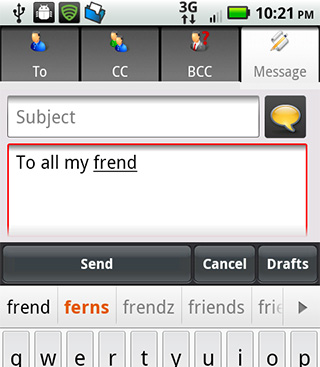
The Swype keyboard sometimes will pop up a list of words when it suspects that you meant something other than what you gestured, but for the most part it inserts its best guess or exactly what you chose. (There are sliders to govern the behavior of the Swype keyboard, so it can to some extent to be tuned to your preferences.)
Quickly Entering Snippets of Text
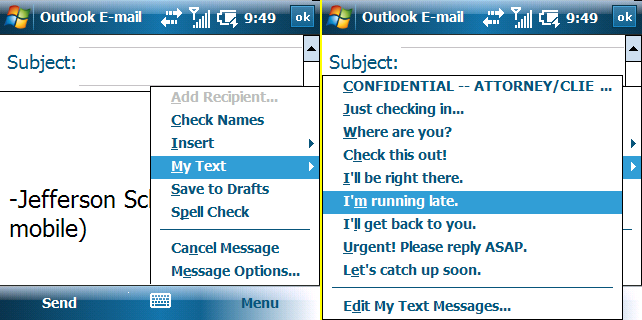
A list of common phrases has long been a staple of text messaging applications. Windows Mobile had a similar feature for email, listed on a My Text menu. These phrases were easy to insert, but a bit arduous to enter and edit. It was easier to edit them in a draft message or a document than though the My Text UI.
On the Droid X, with either Corporate Sync or TouchDown, you need to find another solution for text snippets. One free application in the marketplace is the oddly named CopiPe. The program positions itself on the notification pane for quick access. Once you have saved a phrase in the program, you can access your phrase list on the notification bar, copy it to the clipboard, return to your email program, and paste it into your message.

Although the extra steps are unfortunate, these phrases can be used in any program on the device, so this may end up saving time by avoiding having to set up phrases separately in GMail, work email, other personal accounts, and text messages.